TUI Dashboard
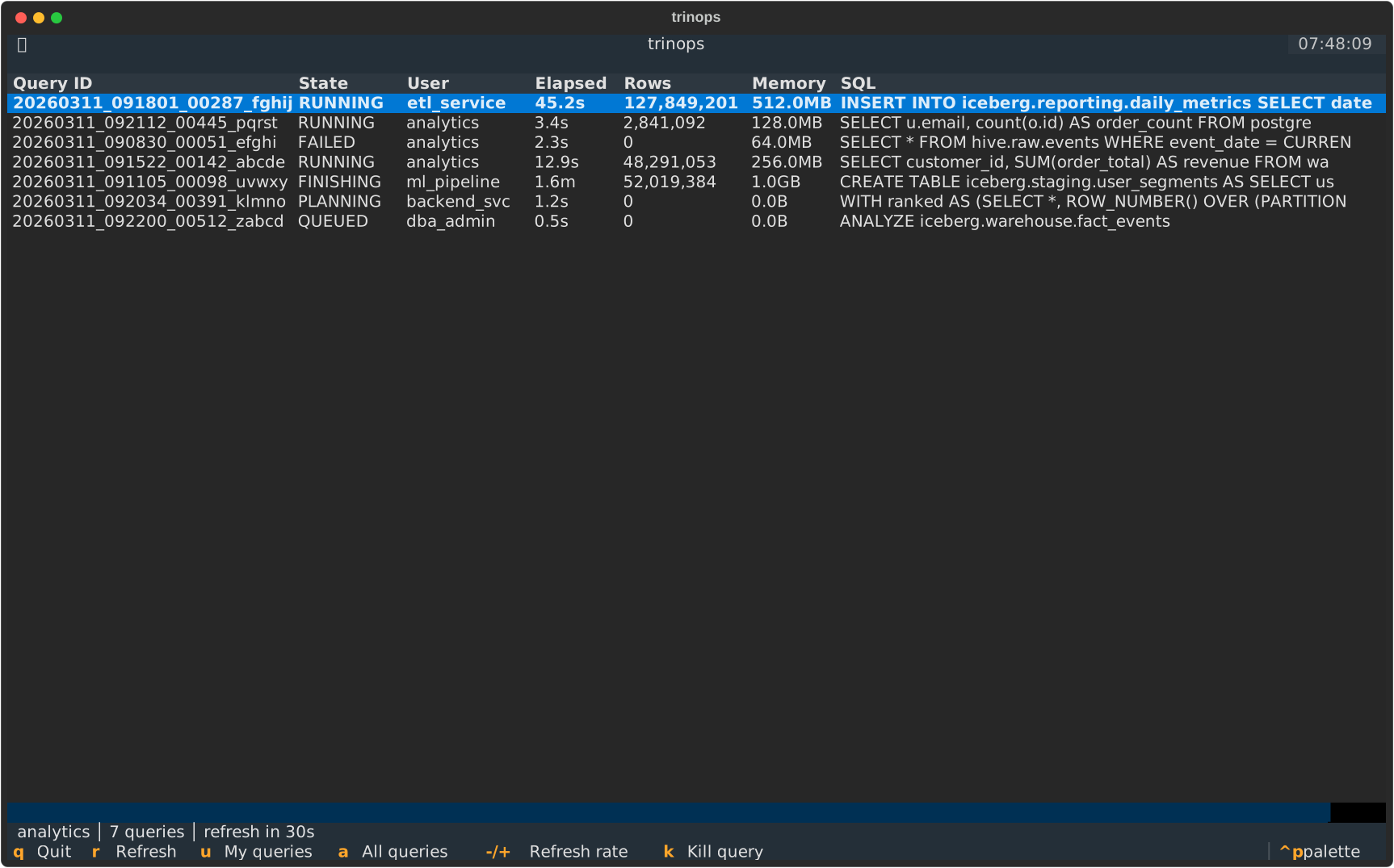
Launch the interactive dashboard with trinops top (or its alias trinops tui). It gives you a live, htop-style view of queries running on your Trino cluster.
Layout
Section titled “Layout”The dashboard has four regions stacked vertically:
- Cluster header — a single dense line showing Trino version, uptime, worker count, running/queued queries, and aggregate CPU and memory.
- Query table — one row per query with columns for Query ID, State, User, Elapsed, Rows, Memory, and a truncated SQL preview.
- Detail pane — a tabbed view that opens below the query table when you select a row.
- Status bar — shows the current user filter, query count, and a countdown to the next refresh.
Keybindings
Section titled “Keybindings”Global
Section titled “Global”| Key | Action |
|---|---|
q | Quit |
r | Refresh immediately |
u | Toggle between your queries and all users |
a | Show all users |
k | Kill the selected query (when allow_kill is enabled) |
- / + | Decrease / increase refresh interval |
Tab | Move focus to the next pane |
Shift+Tab | Move focus to the previous pane |
Escape | Close the detail pane |
Enter | Open detail pane for the selected query |
Detail pane
Section titled “Detail pane”| Key | Action |
|---|---|
Up / Down | Scroll the active tab |
Left / Right | Switch between tabs |
Page Up / Page Down | Scroll one page |
Home / End | Jump to top / bottom |
c | Copy the current tab’s content to clipboard |
Escape | Close the detail pane |
Query table
Section titled “Query table”Columns
Section titled “Columns”| Column | Description |
|---|---|
| Query ID | The Trino-assigned query identifier |
| State | Current state: QUEUED, PLANNING, STARTING, RUNNING, FINISHING, FINISHED, FAILED |
| User | The Trino user who submitted the query |
| Elapsed | Wall-clock time since submission |
| Rows | Number of rows processed so far |
| Memory | Peak memory usage |
| SQL | First ~60 characters of the query text |
Sorting
Section titled “Sorting”Click any column header to sort by that column. Click the same header again to reverse the sort order. The active sort column shows a caret indicator. The default sort is by Elapsed descending, so the longest-running queries appear first.
User filter
Section titled “User filter”By default the table shows only queries belonging to the configured user. Press u to toggle between your queries and all queries on the cluster, or press a to switch directly to the all-users view.
Detail pane
Section titled “Detail pane”Select a query (press Enter on a row) to open the detail pane. It fills the lower 60% of the screen and has four tabs:
| Tab | Content |
|---|---|
| Overview | Query ID, state, user, source, SQL text, resource group, session properties |
| Stats | Elapsed/CPU/queued/planning times, splits, rows, data processed, memory, spill |
| Tables | Input and output tables referenced by the query |
| Errors | Error type, code, and message (only populated for failed queries) |
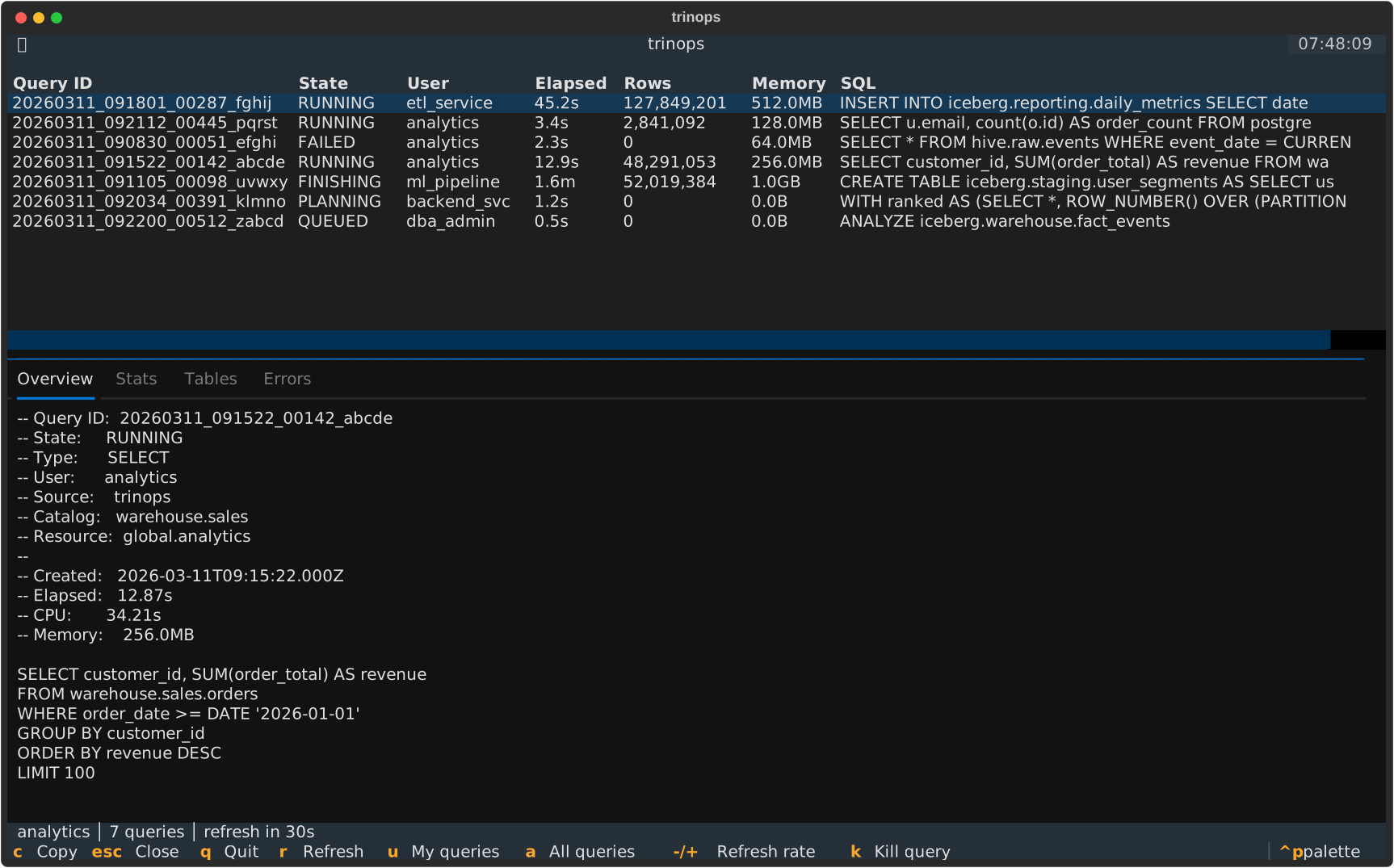
Press Escape or the global Escape binding to close the pane and return focus to the query table.
Kill workflow
Section titled “Kill workflow”Killing a query requires allow_kill = true in your profile (the default). When enabled, the k key is bound.
- Select a query in the table or open its detail pane.
- Press
k. - If
confirm_kill = true(the default), a confirmation dialog appears showing the query ID, user, and a SQL preview. Pressyto confirm orn/Escapeto cancel. - The status bar shows a flash message indicating success or failure.
To disable the kill command entirely, set allow_kill = false in your config. To skip the confirmation prompt, set confirm_kill = false.
Copy to clipboard
Section titled “Copy to clipboard”With the detail pane open, press c to copy the active tab’s text content to your system clipboard. This is useful for grabbing a full SQL statement or error message.
Refresh interval
Section titled “Refresh interval”The default refresh interval is 30 seconds, configurable with --interval:
trinops top --interval 10While the dashboard is running, press - to slow down the refresh rate or + to speed it up. The available steps are 5, 10, 15, 30, 60, 120, and 300 seconds.
Empty state and errors
Section titled “Empty state and errors”When there are no queries matching the current filter, the dashboard shows “No queries for <user>” (or “all users”). Refresh and filter changes update the message automatically.
Connection errors, auth failures, and other transient problems appear as flash messages in the status bar. The dashboard continues retrying on the regular refresh interval; it does not exit on transient errors.